





AIPLAY App iPhone Download – Add the Full Gaming Experience to Your iPhone Home Screen in Just 4 Simple Steps
How to Install the AIPLAY App on Your iPhone – A Fast and Easy iOS Setup Guide That Requires No App Store Download
Installing the AIPLAY App on your iPhone is a straightforward process that does not require downloading anything from the Apple App Store. Instead, AIPLAY uses the iOS "Add to Home Screen" feature available in Safari to place a dedicated AIPPLAY shortcut icon directly on your iPhone's Home Screen — giving you instant, one-tap access to the full AIPLAY gaming platform anytime you want, just like a native app. Follow the 4-step guide below and you will have the AIPLAY App set up on your iPhone in under two minutes.
AIPLAY App iPhone Download – Step-by-Step Setup Guide for iOS Users
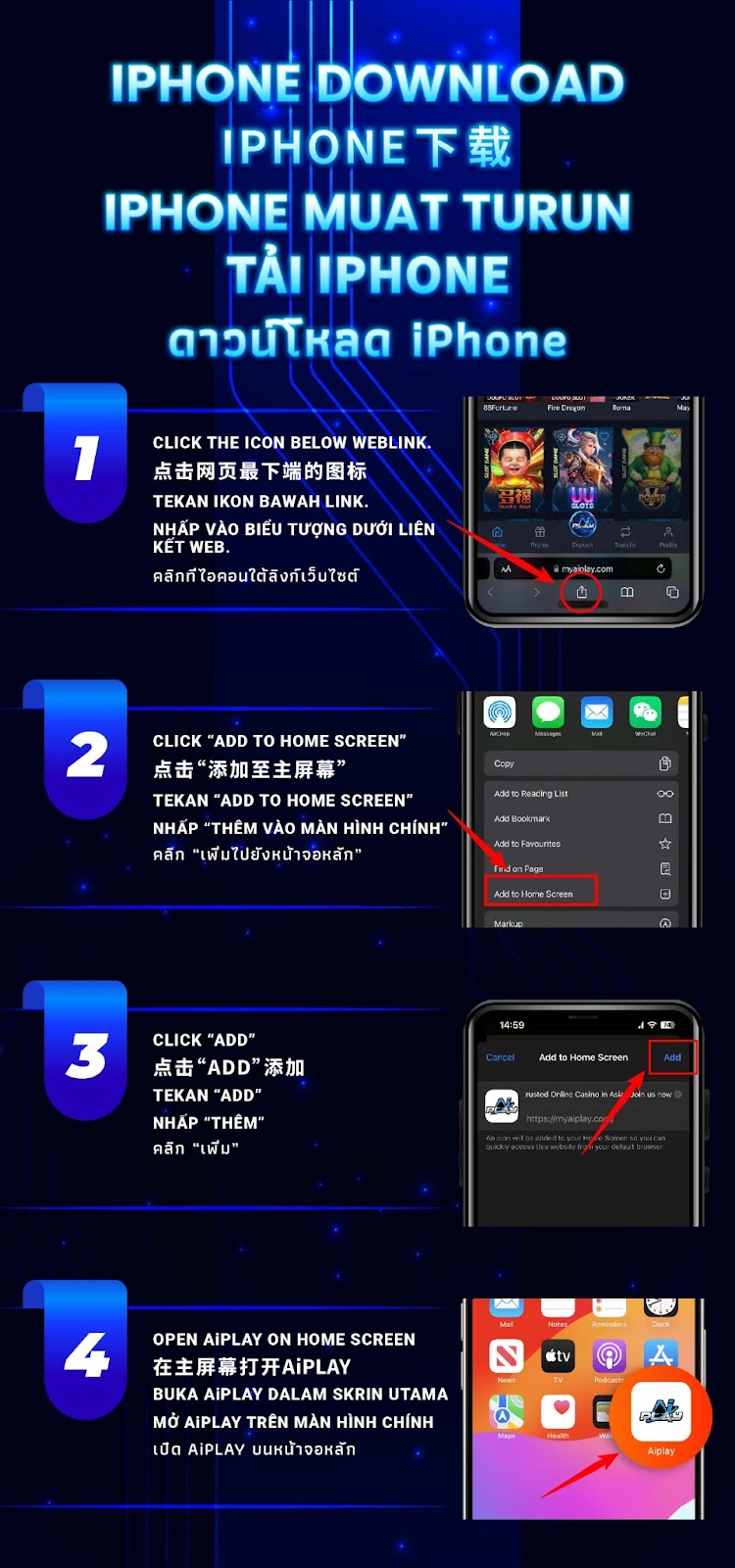
Step 1 – Open the AIPLAY Website in Safari and Tap the Share Icon
Open Safari on your iPhone and navigate to the official AIPLAY website. Once the page has fully loaded, look at the bottom of your screen and locate the Share icon — this is the square icon with an upward-pointing arrow displayed in the Safari browser toolbar at the bottom of your screen. Tap this Share icon to open the iOS Share Sheet, which provides various options for what you can do with the current page to create your AIPLAY App shortcut.
Step 2 – Select "Add to Home Screen" from the Share Menu
After tapping the Share icon, the iOS Share Sheet will appear showing a list of available options for your AIPLAY App setup. Scroll down through the list until you find the option labelled "Add to Home Screen" and tap it. This option tells your iPhone to create a shortcut icon for the AIPLAY website that will appear on your Home Screen just like a native app, giving you quick and direct access to the AIPLAY App every time you use your device.
Step 3 – Tap "Add" to Confirm the Home Screen Shortcut
After selecting "Add to Home Screen" for the AIPLAY App, a confirmation screen will appear showing a preview of the AIPLAY icon and the shortcut name. You can edit the name if you wish, or simply leave it as the default. Once you are ready, tap the "Add" button in the upper right corner of the screen to confirm. The AIPLAY App icon will be added to your iPhone Home Screen immediately after tapping Add.
Step 4 – Open the AIPLAY App Directly from Your iPhone Home Screen
Once the AIPLAY App shortcut has been added to your Home Screen, simply find the AIPLAY icon among your apps on the Home Screen and tap it to launch the platform instantly. The AIPLAY App will open in a full-screen view that looks and feels just like a native app, giving you seamless access to all AIPLAY games, promotions, deposits, withdrawals, and account features directly from your iPhone with a single tap.
Frequently Asked Questions – AIPLAY App iPhone Setup
Why Is the AIPLAY App Not Available on the Apple App Store?
Due to Apple App Store guidelines surrounding online gaming applications, the AIPLAY App is not distributed through the App Store. Instead, AIPLAY provides a fully optimised mobile web experience accessible through Safari on iOS devices, with the Add to Home Screen feature allowing iPhone users to save a dedicated shortcut that functions just like a native app — without requiring an App Store download or any software installation for the AIPLAY App.
Do I Need to Use Safari for the AIPLAY App iPhone Setup?
Yes. The "Add to Home Screen" option used in this AIPLAY App iPhone setup guide is a feature specific to Apple's Safari browser on iOS. If you are using a different browser such as Chrome or Firefox on your iPhone, the Add to Home Screen option may not be available or may function differently for the AIPLAY App. For the best and most reliable AIPLAY App iPhone setup experience, always use Safari when following this guide on your iOS device.
Will the AIPLAY App Work the Same Way as a Native App on iPhone?
Yes. Once the AIPLAY App shortcut is added to your iPhone Home Screen via Safari, tapping it will open AIPLAY in a full-screen, app-like experience without the standard Safari browser bar visible. All AIPLAY App features — including games, promotions, deposits, withdrawals, live casino, and account management — are fully accessible through the Home Screen shortcut, providing a seamless mobile gaming experience equivalent to a dedicated iOS app.
Add the AIPLAY App to Your iPhone Home Screen Now & Play Anytime from Your iOS Device
The AIPLAY App is fully optimised for iPhone and iOS devices, delivering a smooth, fast, and complete mobile gaming experience directly from your Safari browser. Setting up the AIPLAY App on your iPhone takes less than two minutes — no App Store, no downloads, no complications. Just follow the 4-step guide above, add the AIPLAY App to your Home Screen, and enjoy instant one-tap access to hundreds of games, exclusive promotions, and everything AIPLAY has to offer — right from your iPhone, wherever you are.