





AIPLAY App Android Download – Your Complete Guide to Installing the APK on Your Mobile Device in Minutes
How to Download & Install the AIPLAY App on Android – A Simple 6-Step Setup Guide for Your Mobile Device
Getting started with the AIPLAY App on your Android device is quick and straightforward. Because the AIPLAY App is distributed as a direct APK file rather than through the Google Play Store, the installation process involves a few extra steps compared to a standard app download — but with this clear 6-step guide, any Android user can have the AIPLAY App fully installed and ready to play in just a few minutes on their mobile device. Follow each step carefully and you will be up and running on the AIPLAY App in no time.
AIPLAY App Android Download – Step-by-Step Installation Guide
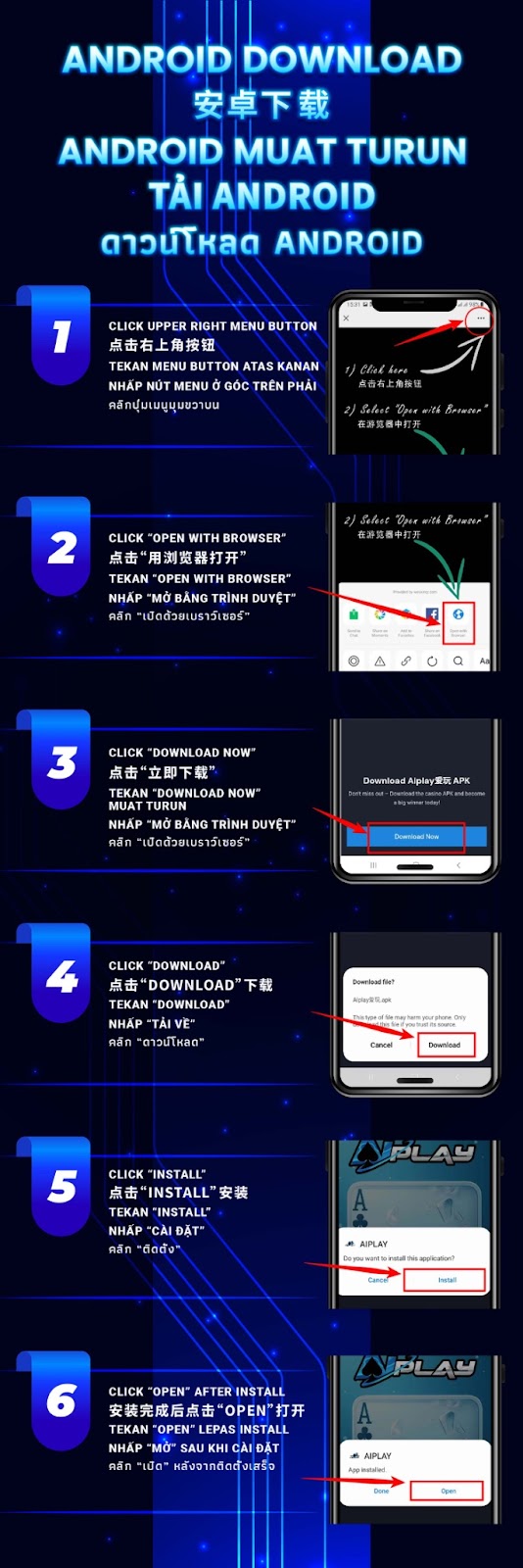
Step 1 – Click the Upper Right Menu Button in Your Browser
Open the AIPLAY website on your Android mobile device using your browser. Once the page has loaded, locate and tap the menu button in the upper right corner of your browser screen. This is typically represented by three dots or a similar menu icon depending on the browser you are using on your Android device. Tapping this button will open your browser's option menu and allow you to proceed to the next step for downloading the AIPLAY App.
Step 2 – Select "Open with Browser"
From the menu that appears after tapping the upper right button on your Android mobile device, select the option labelled "Open with Browser". This step ensures that the AIPLAY App APK download page opens correctly in your mobile browser rather than within an in-app browser environment, which may restrict the download from proceeding properly on certain Android devices.
Step 3 – Tap the "Download Now" Button
Once the AIPLAY App APK download page has loaded in your Android browser, locate and tap the "Download Now" button displayed prominently on the page. This initiates the download of the AIPLAY App APK file to your Android mobile device. The file will begin downloading to your device's default download folder for the AIPLAY App installation.
Step 4 – Tap "Download" to Confirm the File Download
Your Android mobile device may display a security warning popup that says the file type may harm your phone and asks whether you trust the source. This is a standard Android security prompt for APK files downloaded outside of the Play Store for apps like the AIPLAY App. Tap the "Download" button to confirm and proceed with downloading the AIPLAY App APK file to your Android device.
Step 5 – Tap "Install" to Install the AIPLAY App
Once the AIPLAY App APK file has finished downloading on your Android mobile device, a prompt will appear asking whether you want to install the application. Tap the "Install" button to proceed. If your Android device displays a message about installing apps from unknown sources, you will need to enable the "Allow from this source" or "Install unknown apps" permission in your device settings before the AIPLAY App installation can proceed. Once permitted, the installation will complete in a matter of seconds on your Android device.
Step 6 – Tap "Open" After Installation is Complete
Once the AIPLAY App has been successfully installed on your Android mobile device, a confirmation screen will appear showing that the app is ready. Tap the "Open" button to launch the AIPLAY App immediately on your Android device. You can now log in to your existing AIPLAY account or register a new account directly from the app and begin playing your favourite games right away on your mobile device.
Frequently Asked Questions – AIPLAY App Android Download
Is the AIPLAY App Android APK Safe to Download?
Yes. The AIPLAY App APK file is the official application distributed directly by AIPLAY for Android users. The security warning displayed by Android during installation is a standard system prompt that appears for all APK files installed outside of the Google Play Store — it does not indicate that the AIPLAY App file is harmful. Always download the AIPLAY App APK only from the official AIPLAY platform to ensure you are installing the genuine, unmodified application on your Android mobile device.
Why Do I Need to Allow Unknown Sources for the AIPLAY App?
Android devices restrict the installation of APK files from outside the Google Play Store by default as a security measure. Since the AIPLAY App is distributed as a direct APK download for Android, you need to grant your browser or file manager the permission to install apps from unknown sources. This permission can be found in your Android device's Settings under Security or Apps, depending on your version. Once the AIPLAY App is installed on your mobile device, you may re-disable this permission for security.
What If the AIPLAY App Download Does Not Start on Android?
If the AIPLAY App APK download does not start after tapping Download Now on your Android mobile device, ensure that you have followed Steps 1 and 2 correctly by opening the page in your device's main browser rather than an in-app browser. In-app browsers on platforms like WhatsApp, Facebook, or Telegram may block direct file downloads for apps like the AIPLAY App. Use Chrome or your Android device's default browser for the smoothest AIPLAY App download experience.
Download the AIPLAY App for Android Now & Start Playing in Minutes
The AIPLAY App is fully optimised for Android mobile devices — giving you access to the complete AIPLAY gaming experience anywhere, anytime, right from your smartphone. Follow the 6-step guide above to download and install the AIPLAY App APK on your Android device quickly and safely. Once installed on your mobile device, log in or register your AIPLAY account and dive straight into hundreds of slots, live casino games, sports betting, fishing games, and more — all from the palm of your hand. Tap the button below to get started with the AIPLAY App on your Android device.